
-
 Screens, Raspberry Pi 5 accessories
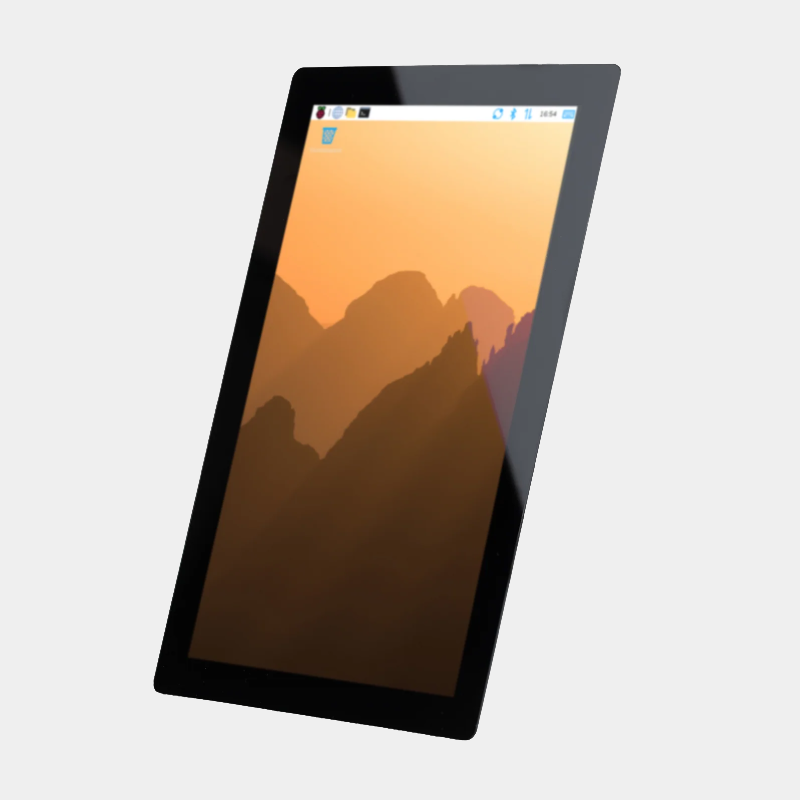
Raspberry Pi Touch Display 2: 10.1″ version
92,40 € INCL. VATIn stock -

-

-
 Screens
Raspberry Pi Monitor
114,00 € INCL. VATIn stockSelect options This product has multiple variants. The options may be chosen on the product pageQuick view -
 Screens
Capacitive touchscreen with stand for Raspberry Pi 5
from 109,44 € INCL. VATIn stockSelect options This product has multiple variants. The options may be chosen on the product pageQuick view -
 Raspberry Pi 5 accessories, Raspberry Pi 4 accessories, Screens
Raspberry Pi Touch Display 2
69,60 € INCL. VATOn order
Raspberry Pi display: DSI touchscreen, HDMI or monitor, which to choose?
Choosing a Raspberry Pi display depends above all on your board and your use: home automation dashboard, interactive kiosk, office workstation or retro console. The official touchscreens plug into the DSI connector and are powered through the GPIO, HDMI displays work with all models, and each solution has its cabling pitfalls. This guide compares the models in the shop and tells you exactly what you need for the display to work first time.


DSI display or HDMI display: the difference that matters
A DSI display connects through a flexible cable (FFC) to the board's display port. It does not use up an HDMI output, needs no separate power supply (it is powered through two GPIO pins) and the touch goes through the same cable. It is the cleanest solution for an integrated case or a wall-mounted display.
A HDMI display is universal: it works with every Raspberry Pi that has an HDMI output, including the Zero range and the keyboard computers (Pi 400, Pi 500), which have no DSI connector. Any touch then goes over a USB cable.
Worth knowing about connectors:
- Raspberry Pi 5 : two 4Kp60 micro-HDMI outputs and two 4-lane MIPI connectors usable for a camera or a display. These connectors are smaller (22-pin) than those of earlier models.
- Raspberry Pi 4 : two micro-HDMI outputs (up to 4Kp60) and one 15-pin 2-lane DSI port.
- Raspberry Pi Zero 2 W : one mini-HDMI output, no DSI.
The official Raspberry Pi touchscreens
Touch Display 2 in 7 inch: the all-round choice
The Raspberry Pi Touch Display 2 in 7 inch shows 720 x 1280 pixels in native portrait format (rotation possible in the Control Centre), with a five-point capacitive touch and a virtual keyboard built into Raspberry Pi OS. It comes with the two useful cables (15 to 15-way for the Pi 4 and earlier, 22 to 15-way for the Pi 5), the GPIO power cable and the screws to fix the board to the back of the display. It is compatible with the Raspberry Pi B+ and all later models, except the Zero range and the keyboard computers.
Touch Display 2 in 5 inch: compact for small cases
The Raspberry Pi Touch Display 2, 5 inch version has exactly the same resolution (720 x 1280), the same five-point touch and the same compatibility as the 7 inch, in a smaller format (active area of 62 x 110.5 mm). Ideal for a control panel or a portable project.
Touch Display 2 in 10.1 inch: reserved for the Pi 5
The Raspberry Pi Touch Display 2, 10.1 inch version goes up to 1200 x 1920 pixels with ten-point touch. It requires a 4-lane DSI link: it works with the Raspberry Pi 5 and the I/O boards of the Compute Modules (on the CM4 board, only through the DISP1 port), but not with the Raspberry Pi 4 or earlier models. The 22 to 22-way cable is supplied; remember to update the system and the bootloader before the first connection.
Official 7 inch first-generation touchscreen
TheOfficial Raspberry Pi 7 inch 800x480 touchscreen is still in production (until at least January 2030 according to the manufacturer). Ten-point touch, 800 x 480 resolution, adapter board and 15 to 15-way cable supplied. On a Raspberry Pi 5, this cable is not suitable: you need to add the DSI / MIPI display cable for Raspberry Pi 5 (22 to 15-way), sold separately.
 DSI (MIPI) display ribbon cable for Raspberry Pi 5from 1,80 € INCL. VATIn stockIn stockView the product
HDMI displays: large format and monitor
Raspberry Pi Monitor 15.6 inch
The Raspberry Pi Monitor is a 15.6 inch Full HD (1920 x 1080) IPS monitor with built-in speakers, adjustable stand and VESA mounting holes. It works with every Raspberry Pi that has an HDMI output. Two points to plan for:
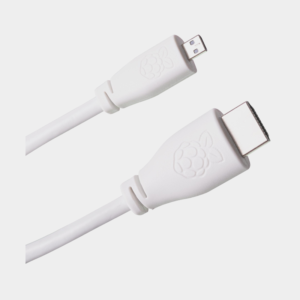
- The video cable : on Pi 4, Pi 5, Pi 400 and Pi 500, you need a official Raspberry Pi micro-HDMI to HDMI cable ; the manufacturer only mentions the USB-C power cable in the box.
- The power supply : powered from a USB port on the Raspberry Pi, it switches to power-saving mode (brightness limited to 50%, volume to 60%). For full brightness, connect it to a USB-C Power Delivery power supply able to deliver at least 1.5 A.
Touchscreen HDMI display with stand
TheCapacitive touchscreen with stand for Raspberry Pi 5 comes in 8 and 10.1 inch. It connects over HDMI for the picture and USB for the touch, with a stand to place it on a desk. Plan on the micro-HDMI cable suited to the Pi 5. For a complete step-by-step guide, read our article capacitive touchscreen for Raspberry Pi 5: uses and installation.
Small display built into the case
To show a system status or a small menu without an external display, the ventilated ABS case kit with 3.5 inch touchscreen for Raspberry Pi 5 combines case, ventilation and a small resistive touchscreen in the lid.
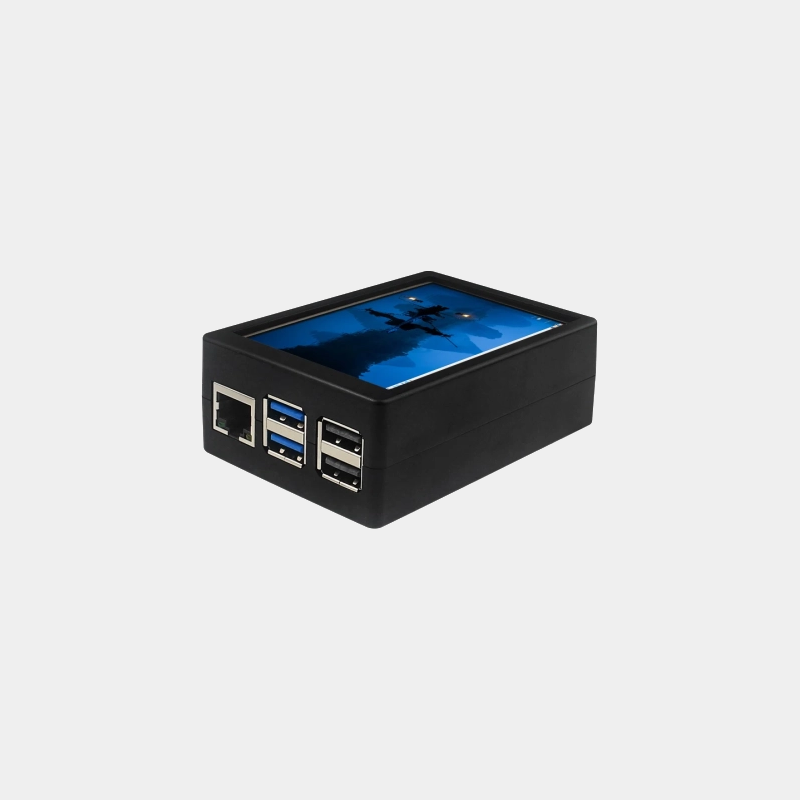 Vented ABS case kit with 3.5" touchscreen for Raspberry Pi 529,90 € INCL. VATIn stockIn stockAdd to cart
Display comparison table
| Screen | Size and resolution | Link | Touch | Compatible boards |
|---|---|---|---|---|
| Touch Display 2 (5") | 5", 720 x 1280 | DSI + GPIO | 5 points | Pi B+ to Pi 5, CM (excluding Zero, Pi 400/500) |
| Touch Display 2 (7") | 7", 720 x 1280 | DSI + GPIO | 5 points | Pi B+ to Pi 5, CM (excluding Zero, Pi 400/500) |
| Touch Display 2 (10.1") | 10.1", 1200 x 1920 | DSI 4-lane + GPIO | 10 points | Pi 5 and Compute Modules only |
| Official 7" display (1st generation) | 7", 800 x 480 | DSI + GPIO | 10 points | Pi with DSI (22/15 ribbon cable for Pi 5) |
| Raspberry Pi Monitor | 15.6", 1920 x 1080 | HDMI + USB-C | No | All Pi with HDMI |
| Touchscreen HDMI display with stand | 8" or 10.1" | HDMI + USB | Capacitive | Pi 5 (HDMI) |
Which display for which project?
- Wall-mounted home automation dashboard : the 7-inch Touch Display 2, attached to the back of the Pi, with a single power cable for the whole setup.
- Interactive terminal, kiosk, museum : the 10.1-inch Touch Display 2 on a Raspberry Pi 5 for its surface area and resolution. Our guide Building an interactive kiosk for a museum or exhibition with Raspberry Pi explains kiosk mode in detail.
- Office or learning workstation : the Raspberry Pi Monitor, for its 15.6-inch size and its speakers.
- Small control panel : the 5-inch Touch Display 2.
- Board without DSI (Zero, Pi 400, Pi 500): an HDMI display.
Pitfalls to avoid
- Wrong ribbon cable on Pi 5 : the Pi 5 display connector is the 22-pin format. The Touch Display 2 supplies the right cable, the first-generation display does not.
- Ribbon cable upside down : on the Raspberry Pi side, the metal contacts must face the Ethernet and USB ports.
- GPIO cable in the wrong place : the red wire (5 V) goes to pin 2, the black one (ground) to pin 6. Reversing them can damage the display.
- Compute Modules : they do not detect DSI displays automatically; a line dtoverlay needs to be added to config.txt.
Frequently asked questions
Which Raspberry Pi touchscreen should I choose to get started?
The 7-inch Touch Display 2: it works with the Pi 4 as well as the Pi 5, all cables are included and Raspberry Pi OS detects it automatically.
Which Raspberry Pi 5 display should I get for a large touch display?
The 10.1-inch Touch Display 2 (1200 x 1920, ten points) if you stay with DSI, or the 10.1-inch HDMI touchscreen if you prefer an HDMI connection.
Does a 7-inch Raspberry Pi display need a separate power supply?
No: the official touchscreens are powered through the Raspberry Pi's GPIO. Simply use the power supply recommended for your board.
Can you connect two screens?
Yes. The Pi 4 and Pi 5 have two HDMI outputs, and the Pi 5 natively supports two Touch Display 2 thanks to its two MIPI connectors.
My display stays black, what should I check?
The orientation of the ribbon cable at both ends, the GPIO power cable, then the system and bootloader update. The display can take up to a minute to appear at startup.
Order your Raspberry Pi display
Our displays are official, tested products, shipped within 24/48 hours of receiving payment from our stock based in France. Pickup point delivery is free from €200 of purchases, with returns within 14 days with a return authorization. For a kiosk project or a fleet of displays, our business account simplifies your orders.